Skip to content
Mizban

Verify a fixed case

The inspector checks a case the host marked resolved and verifies it, or reopens it if the fix did not hold.

InspectorOn a computer5 steps
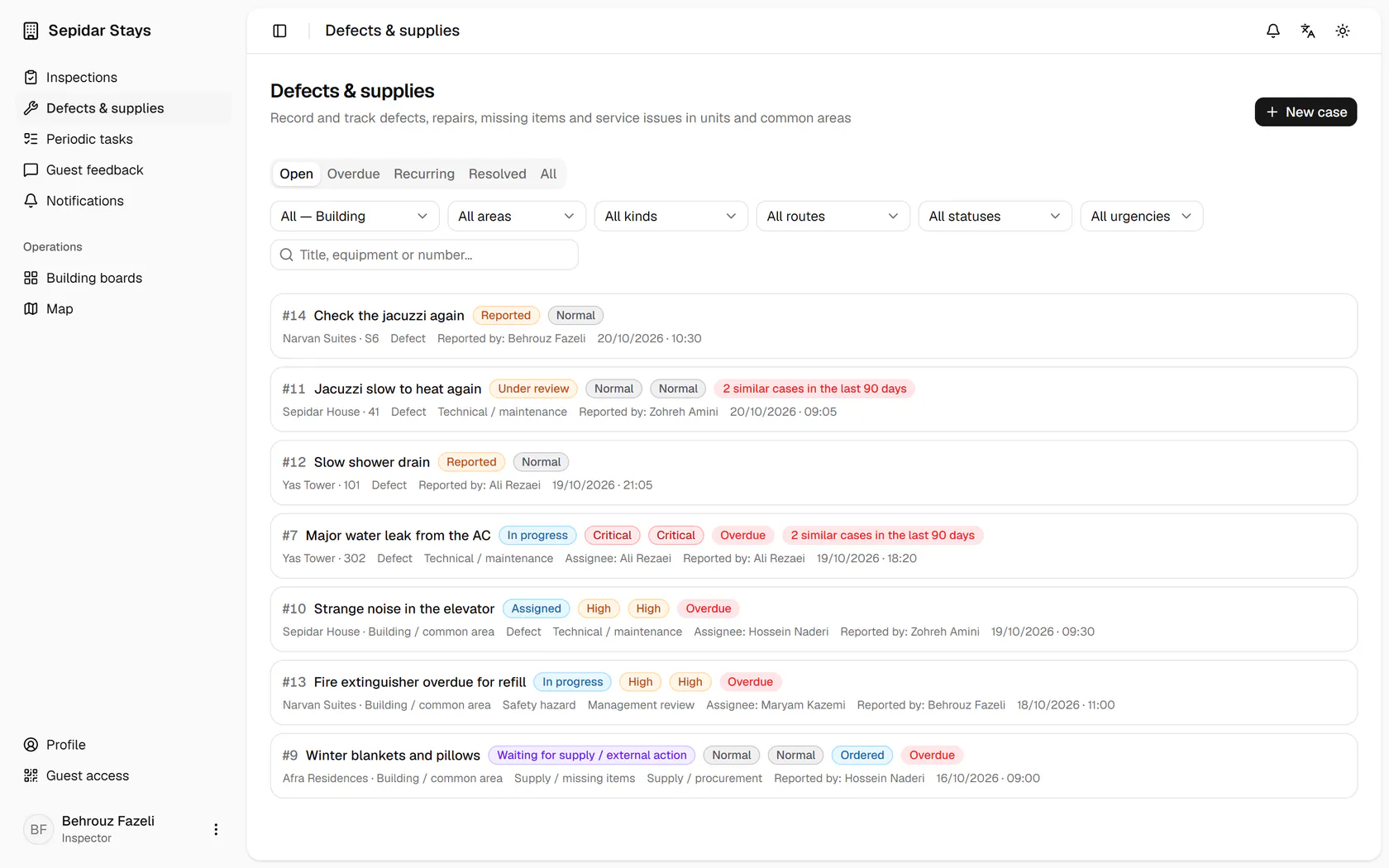
In Defects and supplies, open the Resolved tab.Open the TV remote missing case in Narvan Suites S4.If the problem is still there, Reopen sends the case back with a note.The new remote is in the unit, so choose Verify resolution.The case is Verified, with your name and time added to its history.

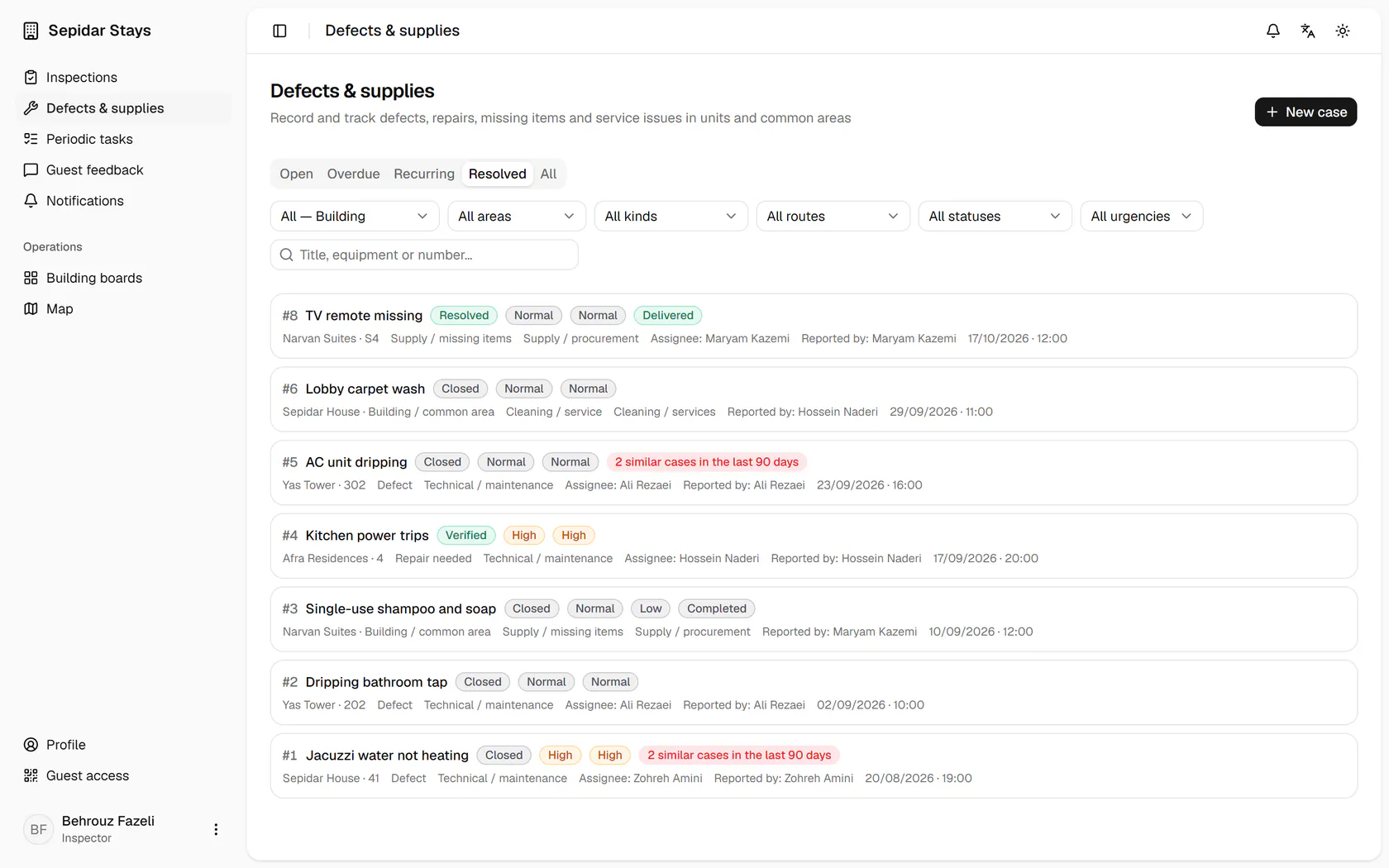
In Defects and supplies, open the Resolved tab.

13:00Marked fixed, or really fixed?Behrouz reviews today's cleanings and confirms, in person, the new remote in suite S4 that was marked fixed.

Step by step

  1. 1

    In Defects and supplies, open the Resolved tab.

    In Defects and supplies, open the Resolved tab.
  2. 2

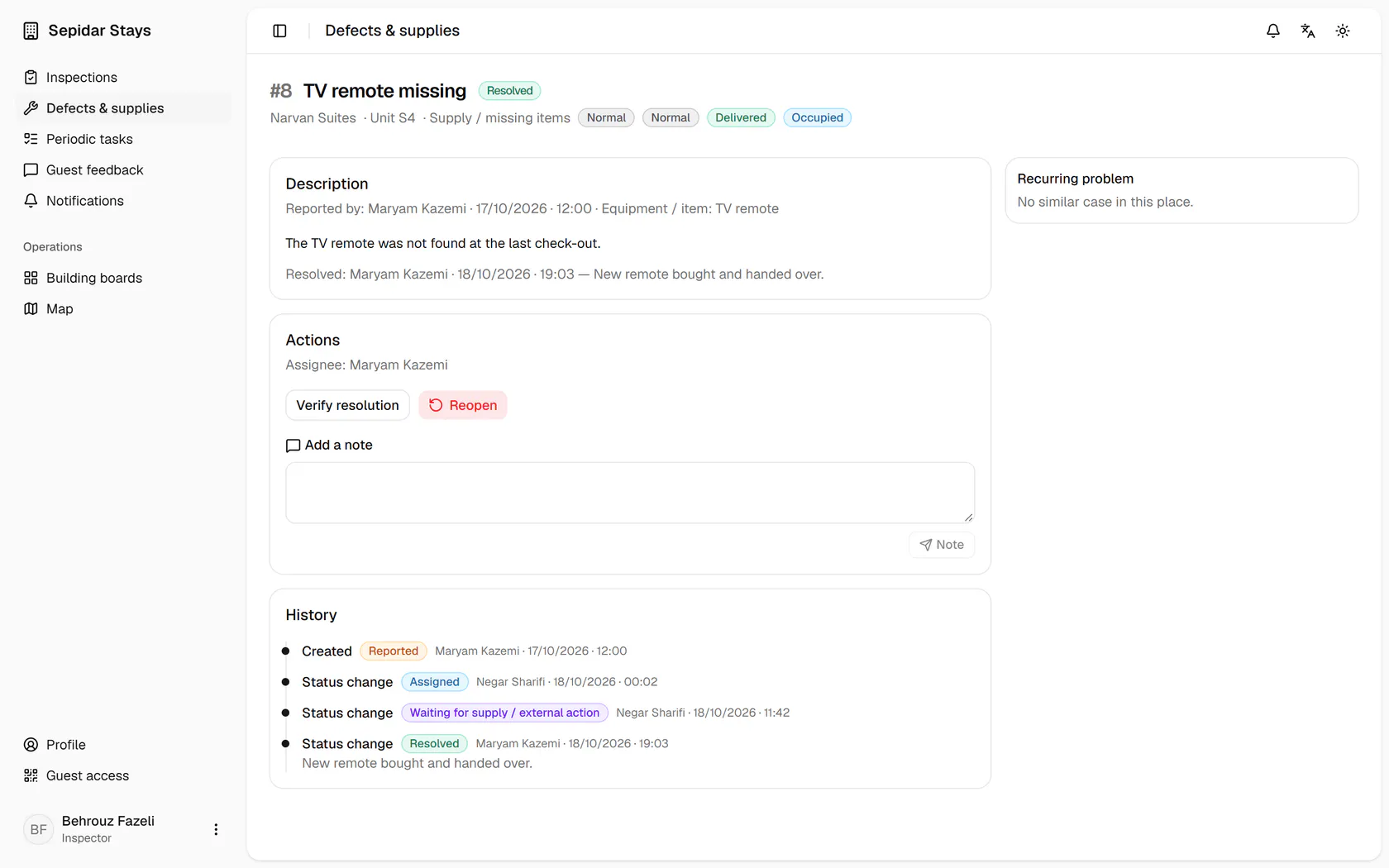
    Open the TV remote missing case in Narvan Suites S4.

    Open the TV remote missing case in Narvan Suites S4.
  3. 3

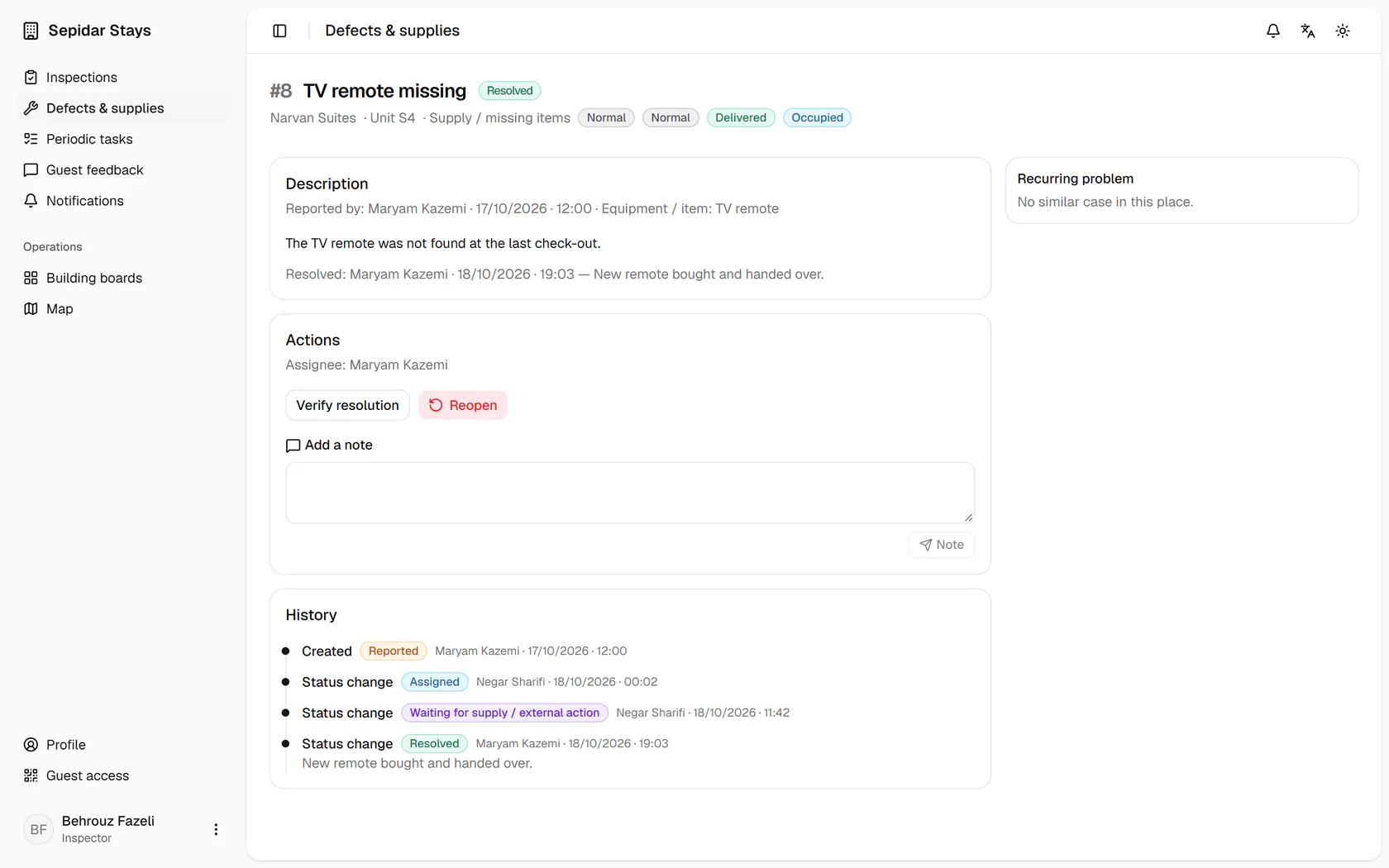
    If the problem is still there, Reopen sends the case back with a note.

    If the problem is still there, Reopen sends the case back with a note.
  4. 4

    The new remote is in the unit, so choose Verify resolution.

    The new remote is in the unit, so choose Verify resolution.
  5. 5

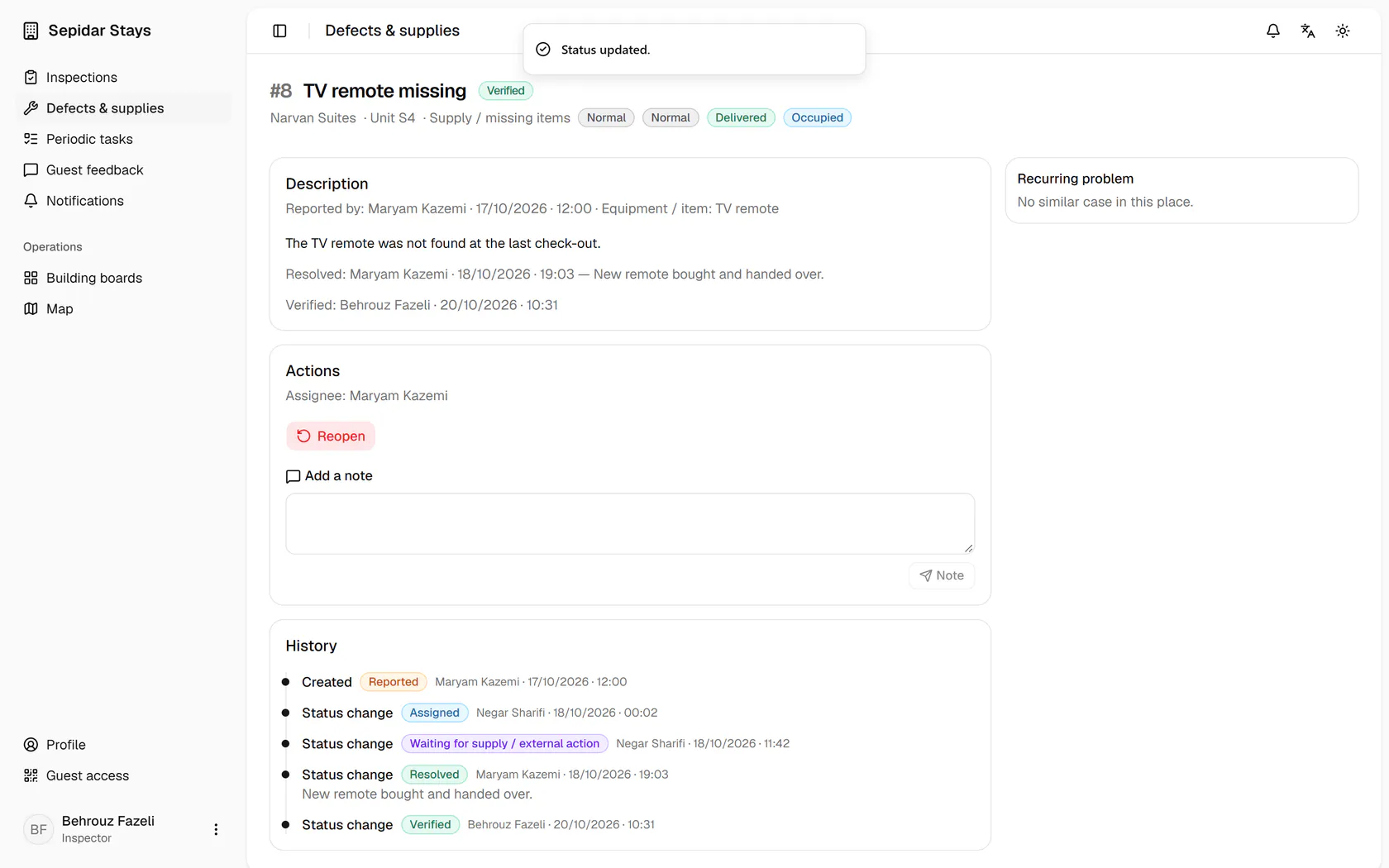
    The case is Verified, with your name and time added to its history.

    The case is Verified, with your name and time added to its history.