Skip to content
Mizban

Organisation settings

The organisation's rules, from check-in requirements to reminders and the SMS gateway, are set on one page.
AdminOn a computer8 steps
The organisation's names and support phone are set here and appear on forms and texts.Decide whether check-in needs a signature, ID document or payment receipt; require the ID.The base cleaning time seeds the estimate until each unit's real history takes over.Set the automatic reminder timings in minutes, such as the check-out reminder 90 minutes before.Choose the SMS gateway; in test mode the messages are only written to the log.Set how many days after check-out a guest can still leave feedback.At the bottom of the page, click Save changes.The settings are saved and apply to every building from now on.

The organisation's names and support phone are set here and appear on forms and texts.

Step by step

  1. 1

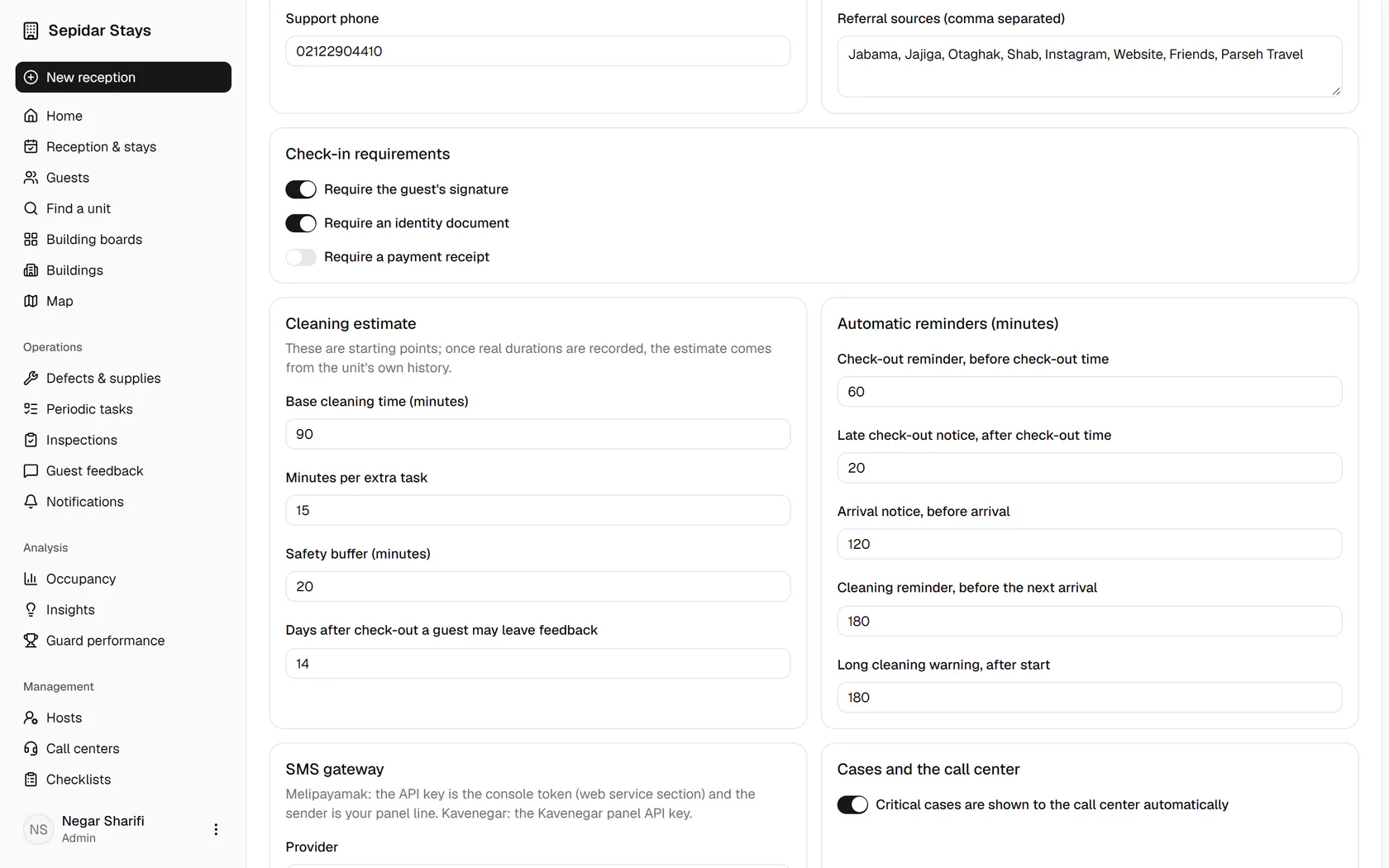
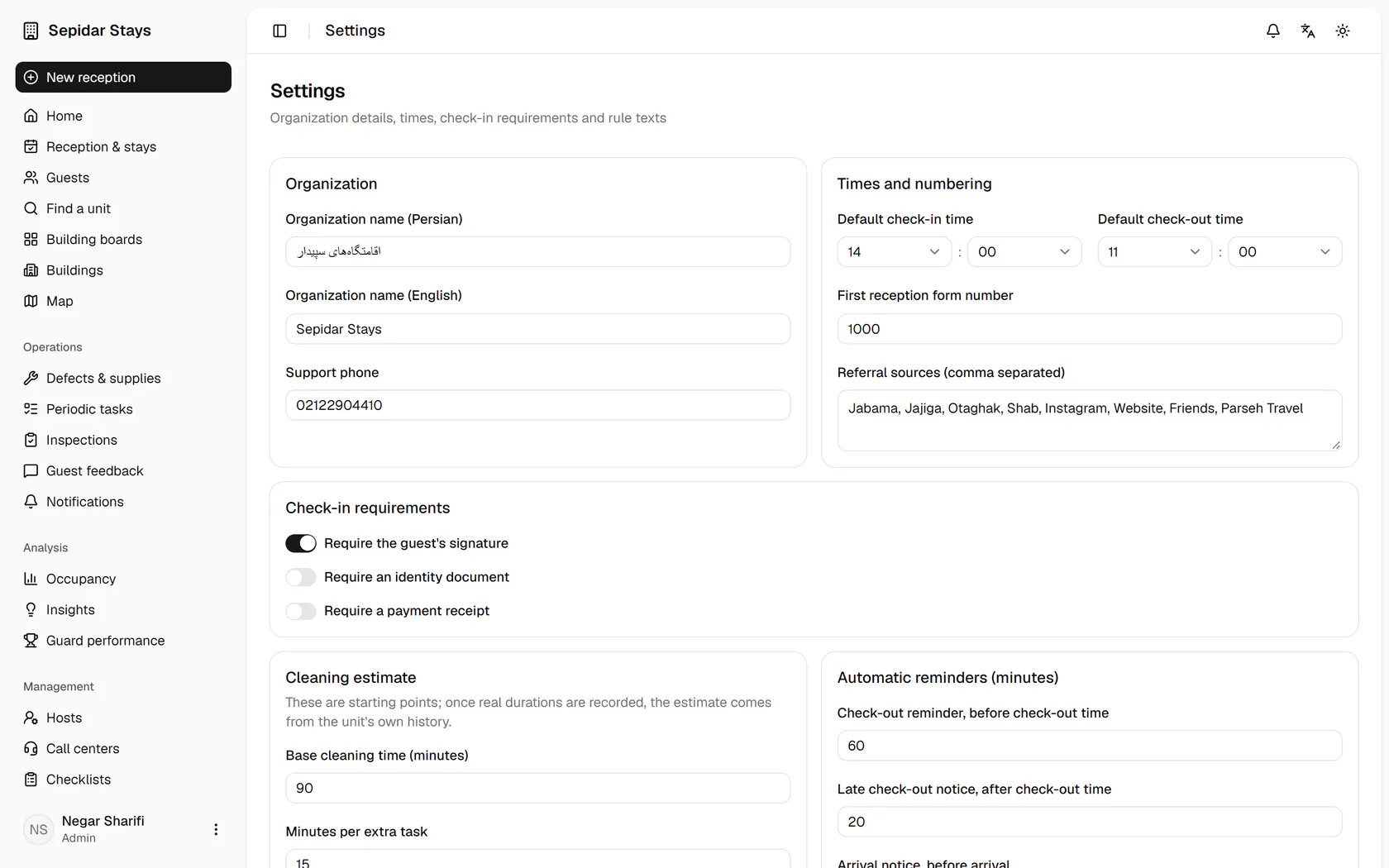
    The organisation's names and support phone are set here and appear on forms and texts.

    The organisation's names and support phone are set here and appear on forms and texts.
  2. 2

    Decide whether check-in needs a signature, ID document or payment receipt; require the ID.

    Decide whether check-in needs a signature, ID document or payment receipt; require the ID.
  3. 3

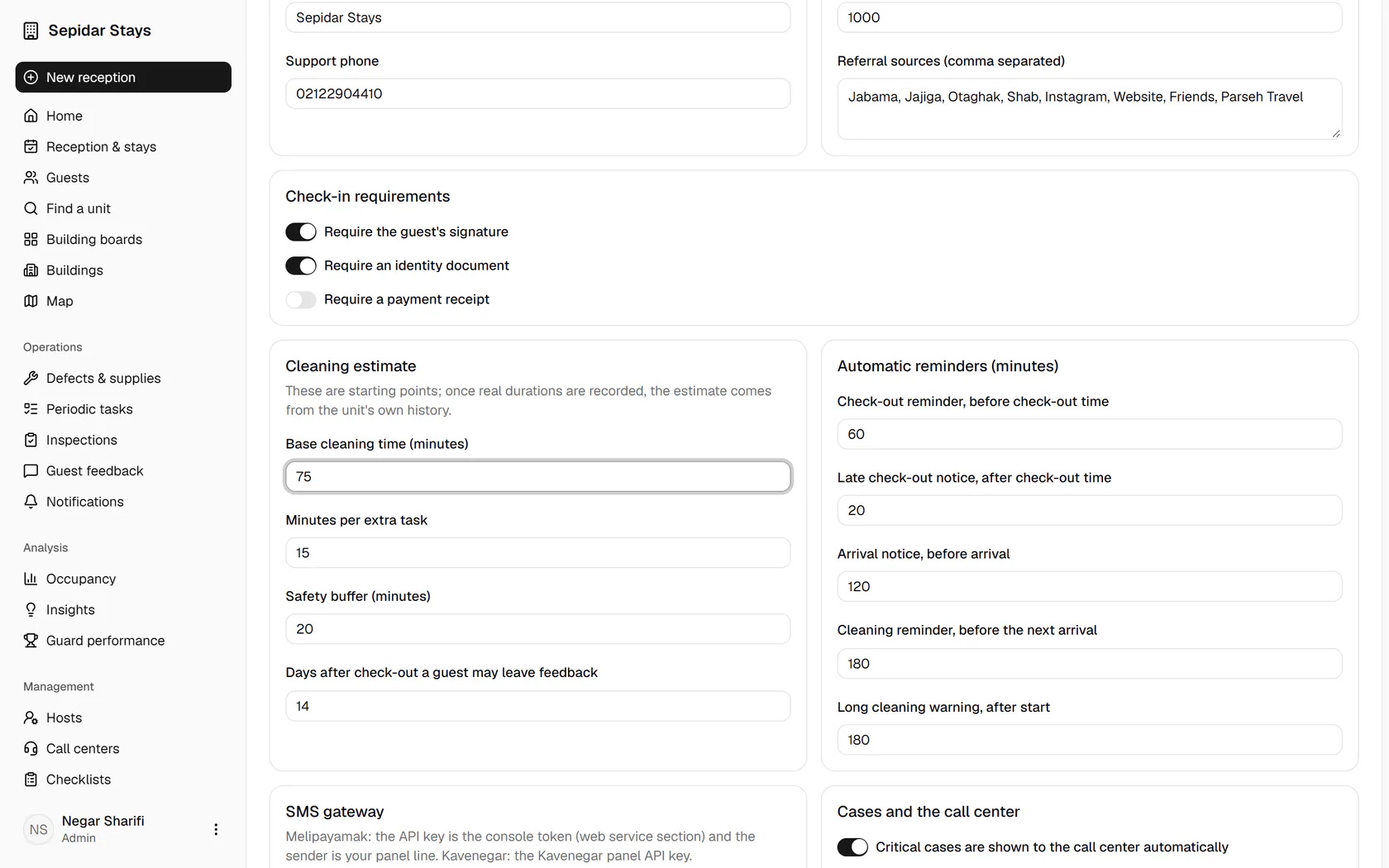
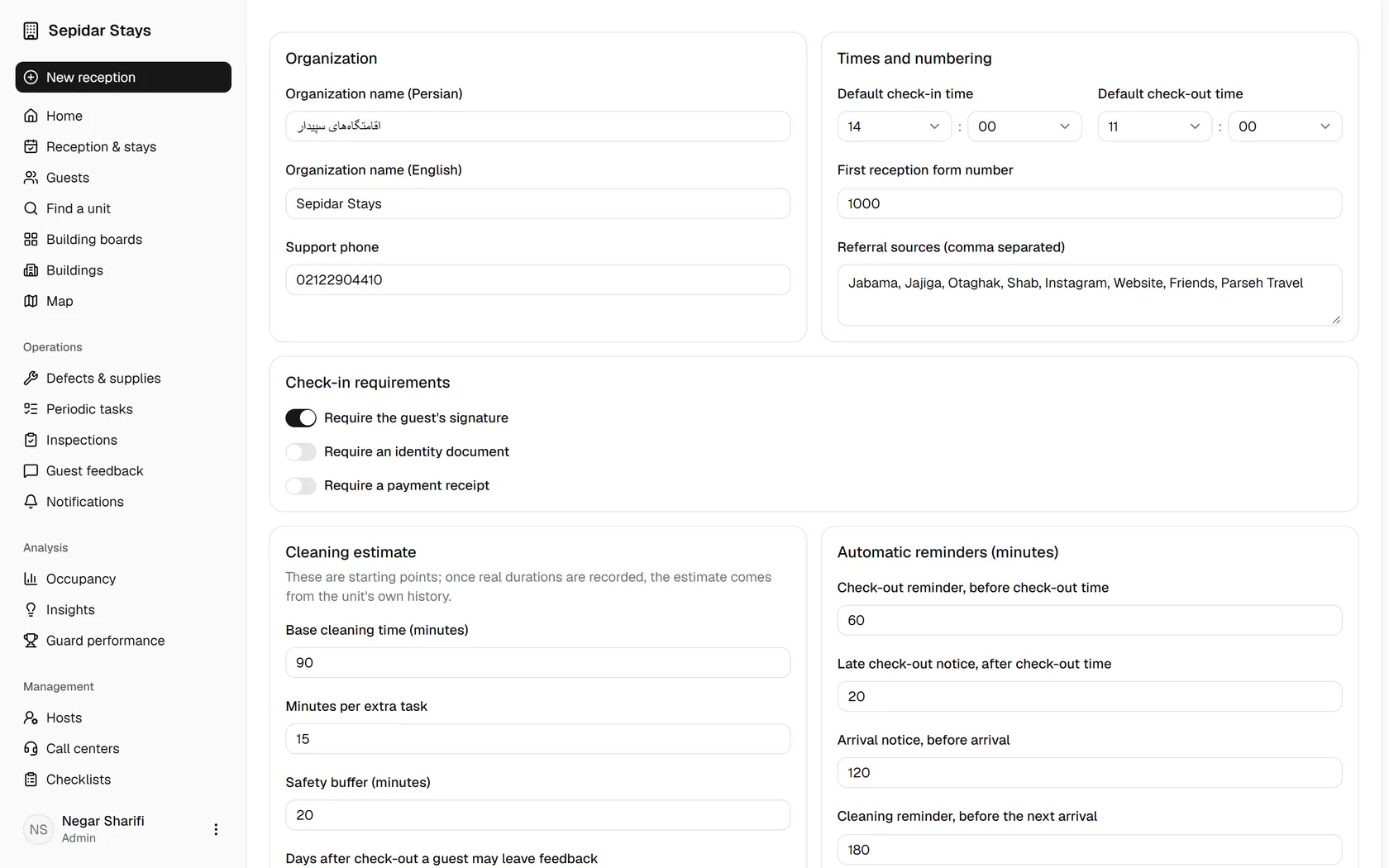
    The base cleaning time seeds the estimate until each unit's real history takes over.

    The base cleaning time seeds the estimate until each unit's real history takes over.
  4. 4

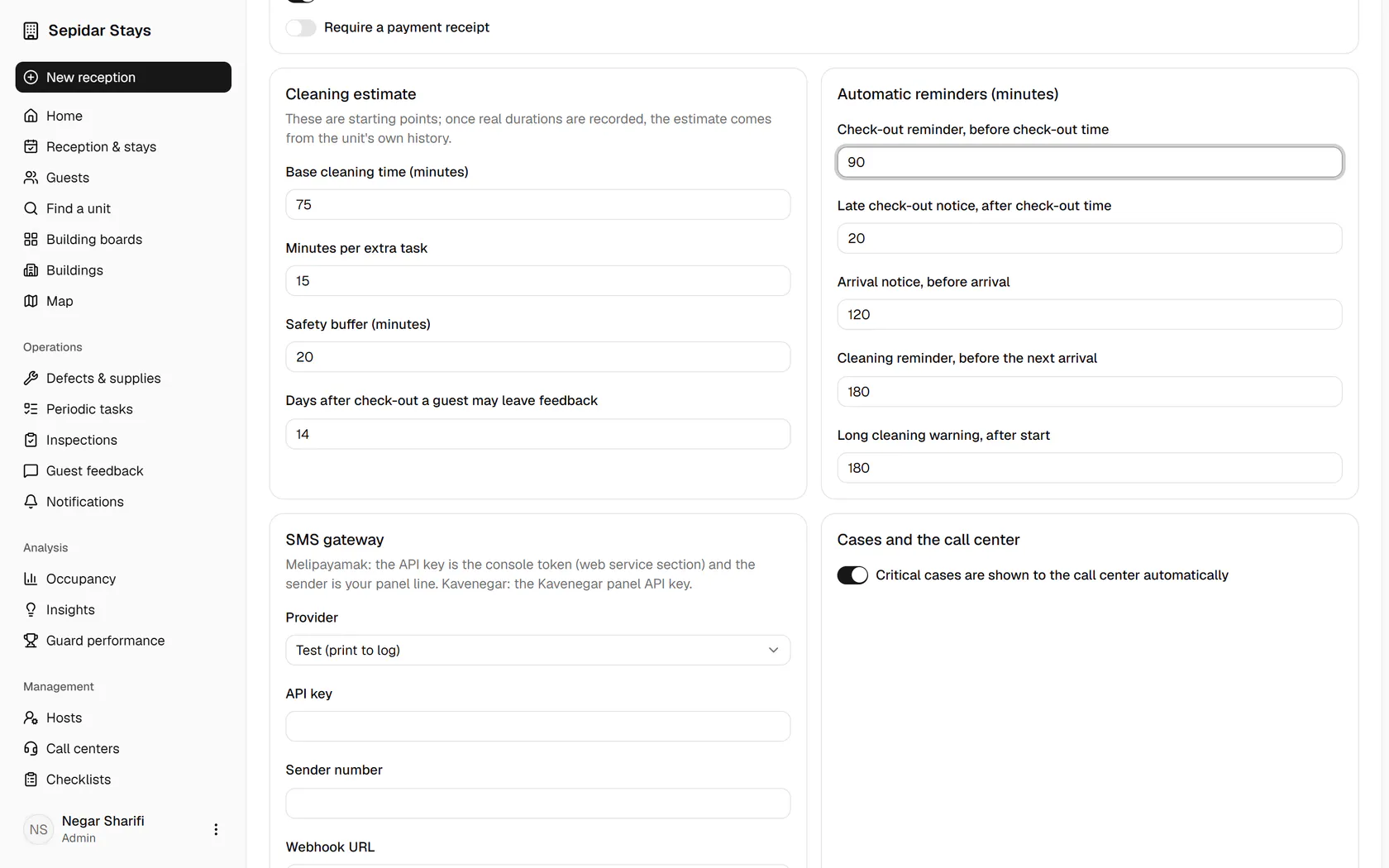
    Set the automatic reminder timings in minutes, such as the check-out reminder 90 minutes before.

    Set the automatic reminder timings in minutes, such as the check-out reminder 90 minutes before.
  5. 5

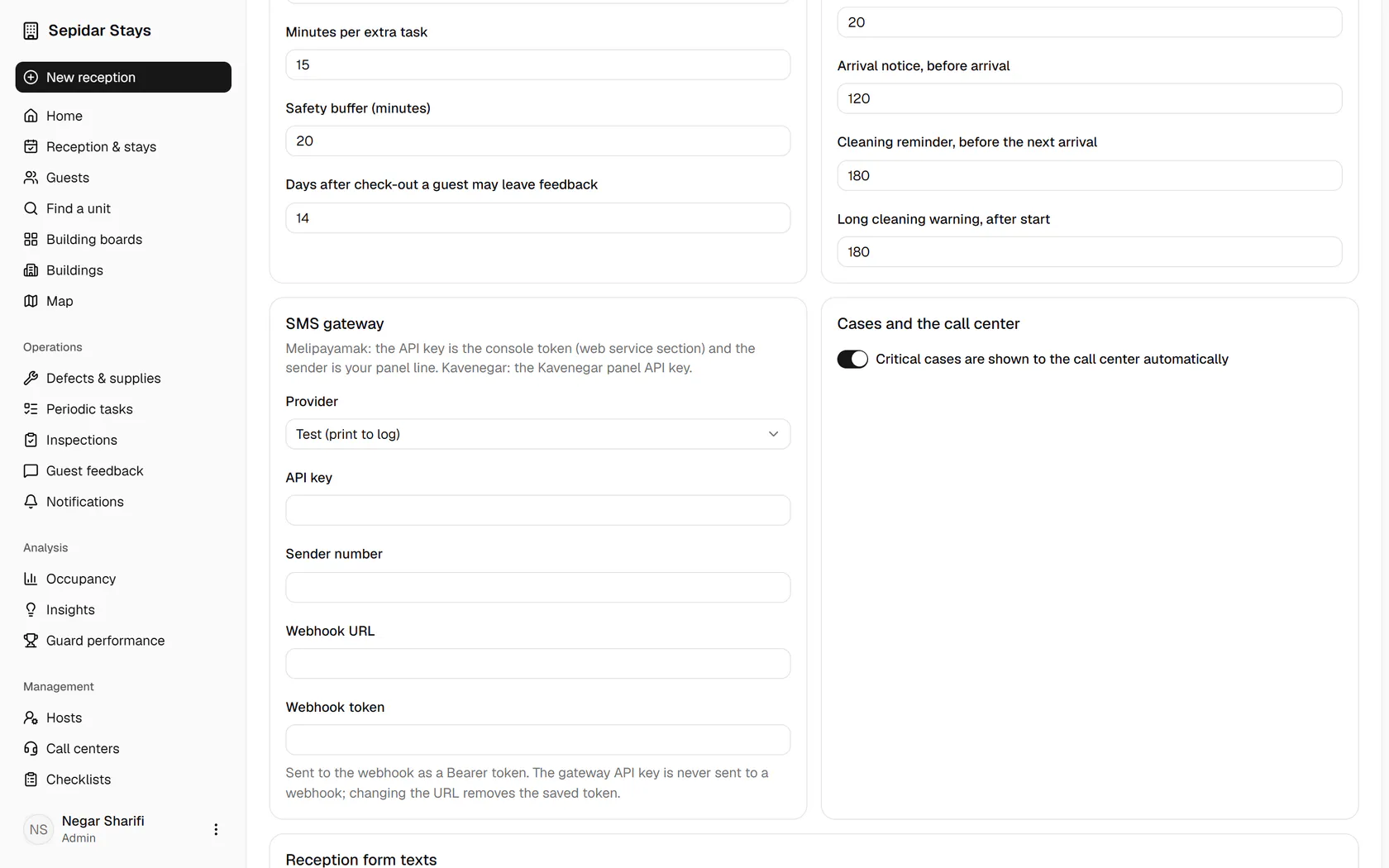
    Choose the SMS gateway; in test mode the messages are only written to the log.

    Choose the SMS gateway; in test mode the messages are only written to the log.
  6. 6

    Set how many days after check-out a guest can still leave feedback.

    Set how many days after check-out a guest can still leave feedback.
  7. 7

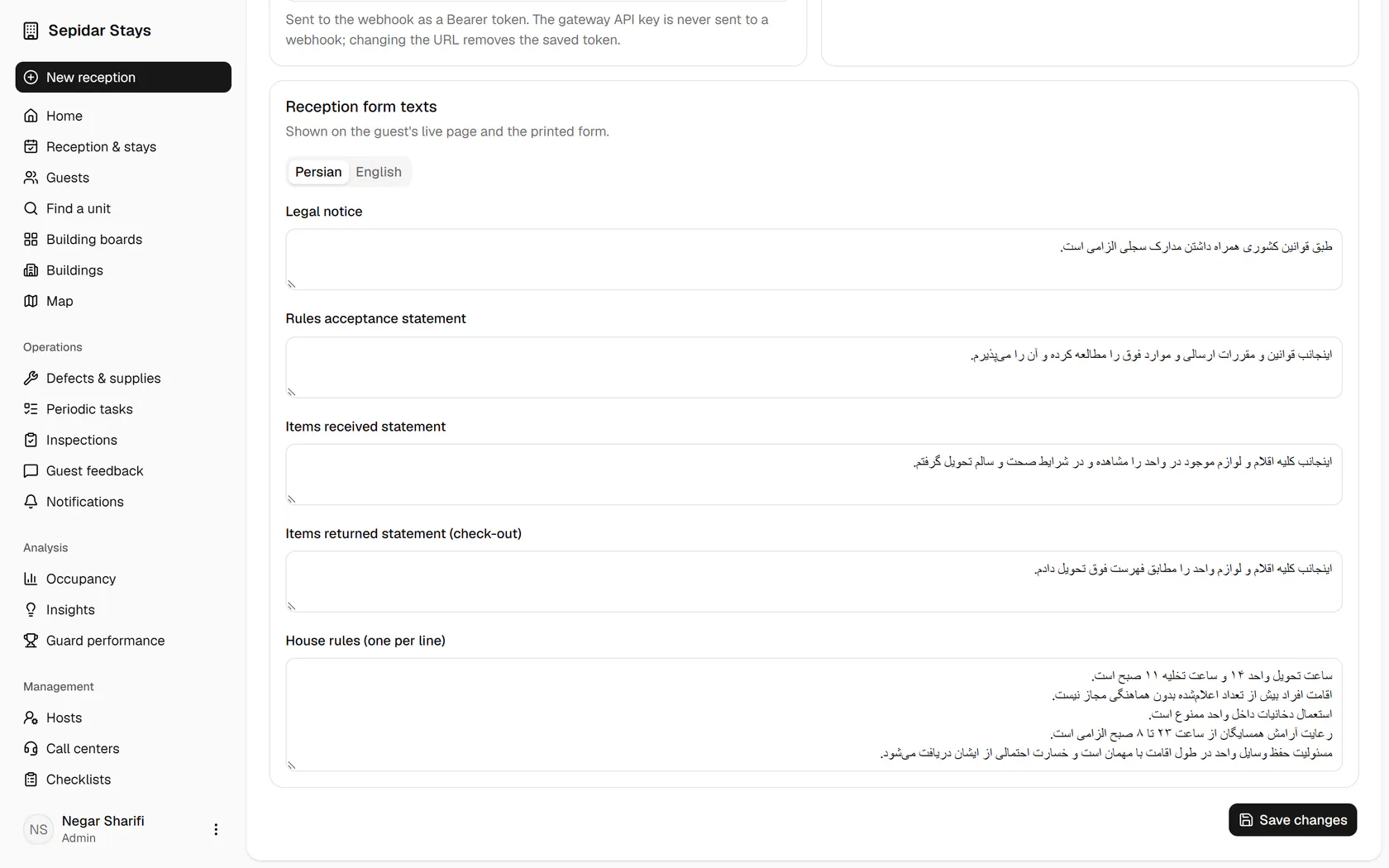
    At the bottom of the page, click Save changes.

    At the bottom of the page, click Save changes.
  8. 8

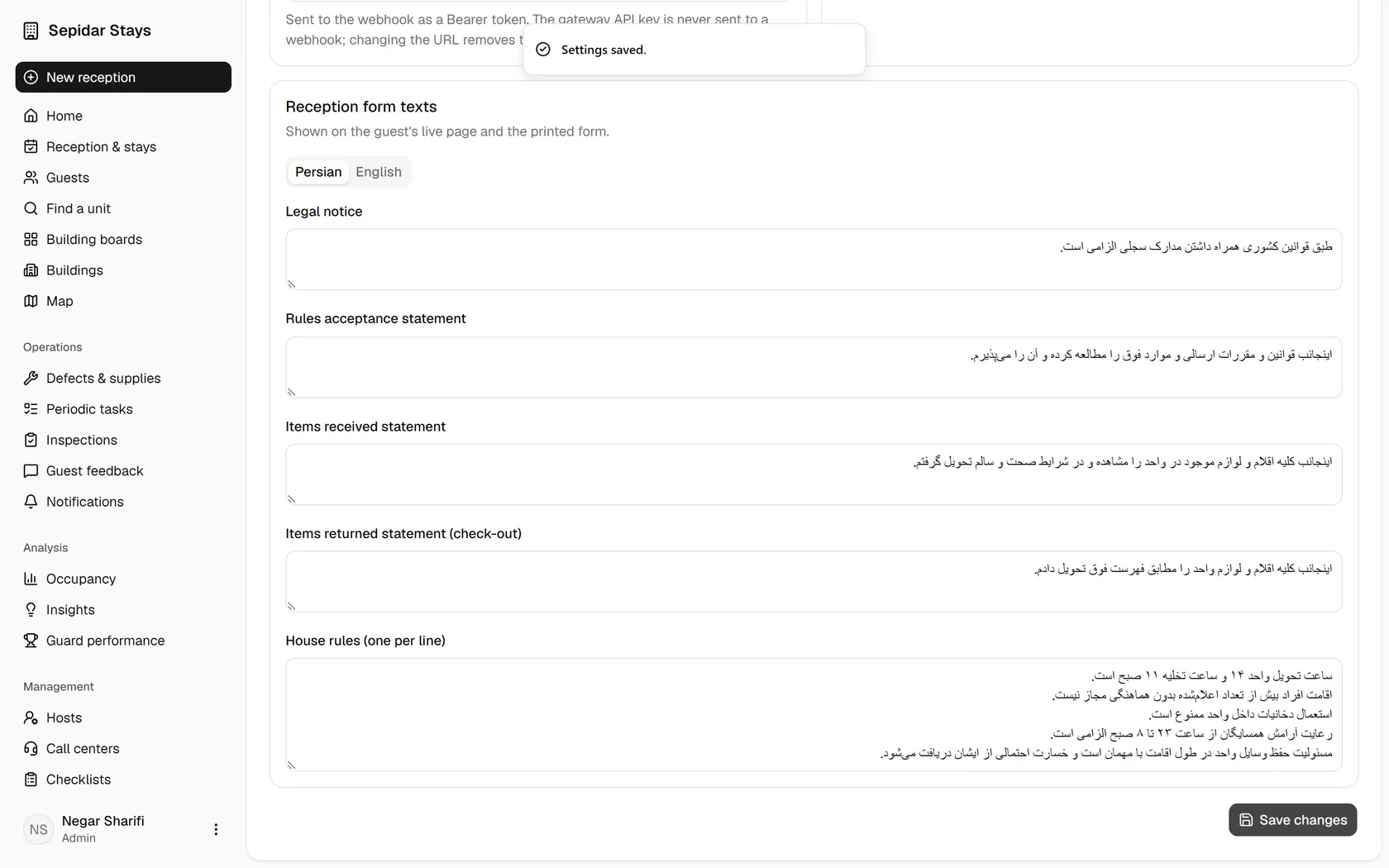
    The settings are saved and apply to every building from now on.

    The settings are saved and apply to every building from now on.